Has (Google’s obsession with) AI ruined Google Dorking?
OSINT Combine | Jul 22, 2026 | 15 MIN READ
Google announced a suite of product changes at I/O, their annual developer conference in May this year. Broadly, the updates could be described as ‘Google is putting AI into everything’. This includes Google Search which has undergone its “biggest upgrade in over 25 years”. We’ll go into more detail about this shortly, but the headline is that we’re moving out of the era of “Google Search” and into one of “Google Answers”.
Key points for OSINT Practitioners about the changes:
- Google dorking still works, for now.
- The brand strategy of Google Search has shifted from directing the researcher to resources, to providing the researcher with answers.
- Technological literacy has become more important for searching.
What’s changed?
There were announcements made about a range of Google products at the conference in May. Not all relate specifically to Google Search (the tool), and not all have been immediately launched. The table below contains an overview of the key points.
| Update | Google Search related? | Launch timing |
|---|---|---|
| Google search updated with “Intelligent Search Box” | Y | May 2026 |
| AI Overview queries can follow through to AI Mode without context loss | Y | May 2026 |
| AI Mode updated to Gemini 3.5 Flash model | N | May 2026 |
| Personal Intelligence functions for AI mode expanded to additional countries, no subscriptions required. | N | May 2026 |
| Ability to use “Information Agents” that search and monitor information in the background | Y | For AI Pro & Ultra Subscribers in the US, Mid-2026 |
| Roll out of agentic booking and business calling to the whole of the US | N | Mid-2026 |
| Access to Generative UI capabilities within search, such as visual tools and simulations that aid in answering the query, or more complex projects like custom dashboards. | Y | Mid-2026 |
| Source: Elizabeth Reid, Google | ||
Spotlight: Google Search interface
Six key changes to the previous Google search interface:
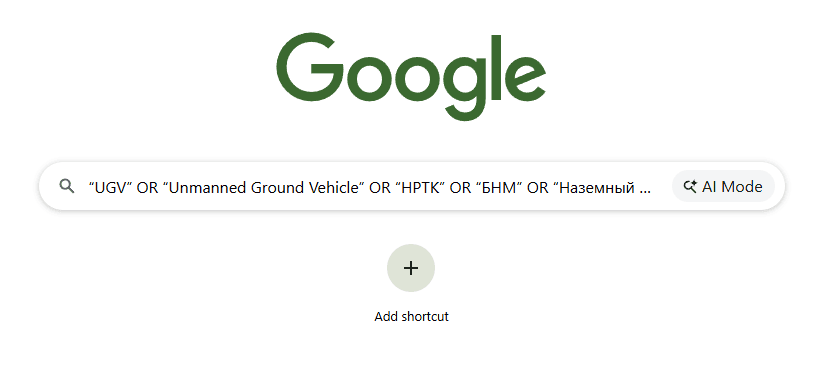
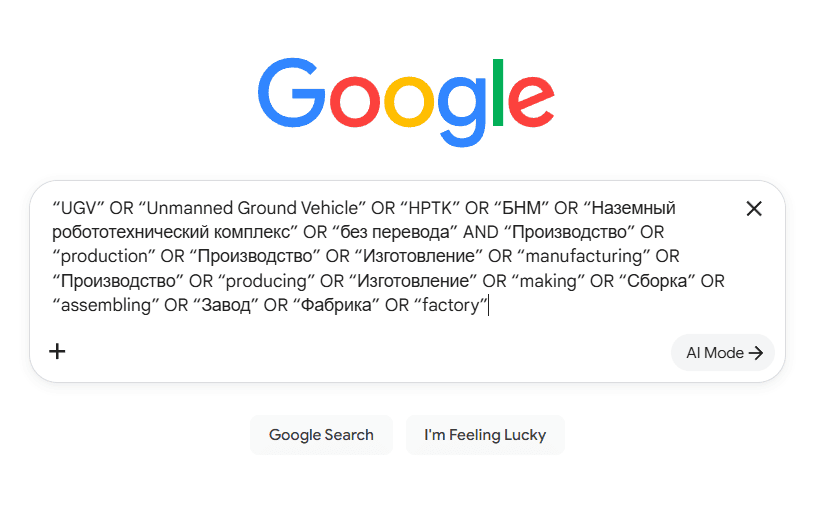
- The search box expands. The full query can now all be seen at one time. This is designed to encourage longer format, chatbot style queries, but it’ll also be helpful for being able to see long advanced search strings.
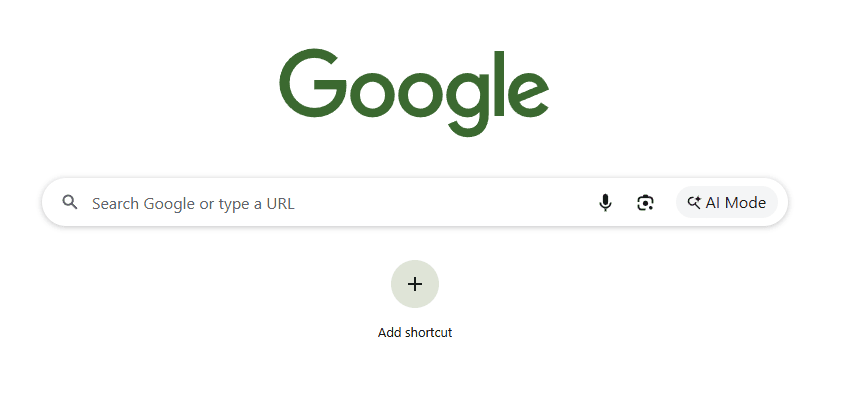
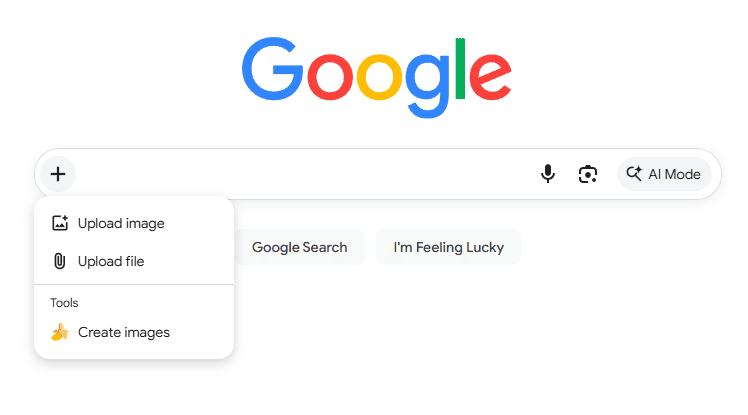
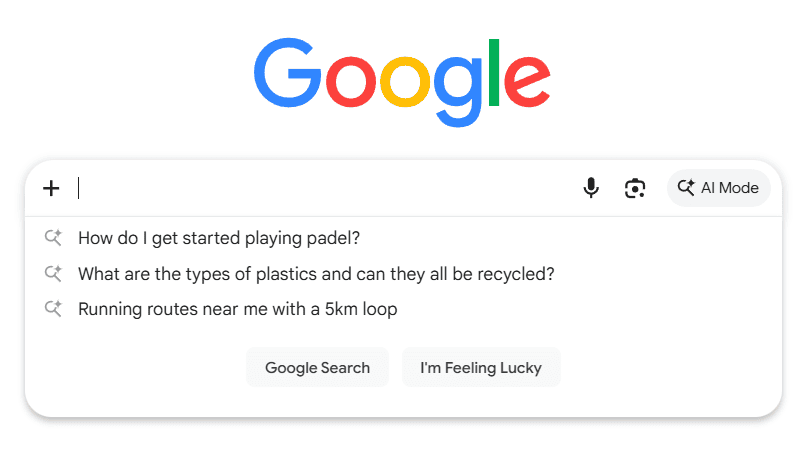
- There are now 2 ways to open a query directly in AI Mode. There is a new “+” button on the left which allows multi-modal upload (images, documents etc.,) of items which opens directly in AI Mode, plus an option to navigate to Nano Banana (image generation tool). The “AI Mode” button on the right also remains. Announcements about this change include videos as a usable search format, but this doesn’t appear to be available yet.
- There are two methods to search using an image. As covered, the new “+” button allows the searcher to query an image using the AI Mode. Once opened, you can click through into the usual reverse image searching tabs. The previous “Search by image” button on the right remains and will search the image without having to use the AI Mode.
- Autocomplete/search suggestions are AI generated now. The autocomplete and search suggestions previously appeared based on the searches of others. Now predictions attempt to anticipate intent.
- No context loss when clicking from AI Overview to AI Mode. If you’re looking for a more in depth follow up on the AI Overview result, you can click through to AI mode without losing context and having to restart the conversation.
The expanding search box
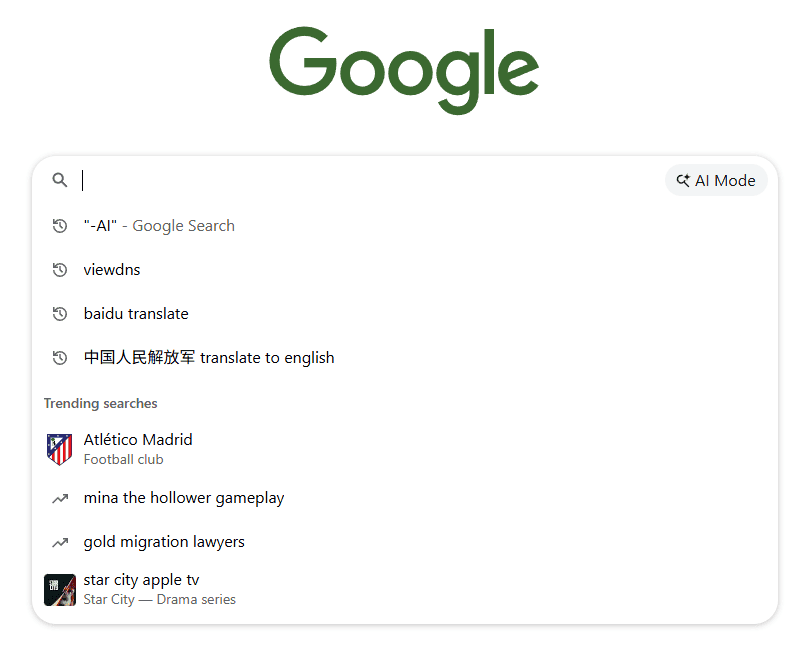
The two images below show the differences in the search box. Previously you would have to scroll left to see the end of your search query. Now the box will expand with the text, allowing you to see it all at once.
Even though the intent behind this change was AI-driven, you can see from the images, it will be useful for OSINT practitioners to be able to see the entire length of a long, advanced search string.
Additional query options
The search box now offers two ways to open queries directly in AI Mode, and two options for searching using an image.
As can be seen in the two images below (the first is the previous interface, and the second is the updated), the options on the right (microphone, image upload and AI Mode) have remained. A “+” button has been added on the left – all inputs via this method will open via AI Mode.
Autocomplete and search suggestions are now AI generated
Previously these suggestions were based on popular terms searched in Google; these are now AI generated. A comparison of the pre-and-post update interfaces can be seen below.
Interestingly, this is part of a larger move away from user generated search terms being utilised within the Google ecosystem. The documentation relating to Google’s search term reporting mechanisms for advertisers was recently updated to note that the search terms may only reflect inferred meaning or intent, instead of the specific keywords. This is reflective of the growing search activity generated from or influenced by the AI tools.
What about dorking?
It’ll be a sad day for OSINTers when Google dorking dies. Thankfully we haven’t reached that point yet, but I’ll keep its obituary in my drafts.
We tested the (traditional) search function and found that recognition of advanced and Boolean operators appears to have remained post-update. It’s trickier to say whether the search processes behind the scenes have changed to integrate AI input. Google’s explainer on how Search works, however, still frames it as an algorithm which applies a variety of signals, including meaning, relevance, quality, useability and context.
The AI Overview is another story. Advanced and Boolean operators can be ignored or assumed as misspellings by the AI constructing the overview. Something to keep in mind if you’re looking to use the information from these overviews.
A note on organically ranked results vs AI Overview
Organically ranked results (traditional search), the AI Overview, and AI Mode are all distinctly different search tools. Practitioners shouldn’t expect each to be an extension of the others i.e. the AI Overview is not just giving a synopsis of the blue link results underneath. It’s a different tool, performing a different type of search (with a different purpose).
According to Google, both the AI Overview and the AI Mode use a “query fan-out technique” to retrieve information. This means that multiple searches are made across a range of information sources and sub-topics, based on the AI’s interpretation of your query. As a result, the information retrieved by the AI tools are different to the traditional search.
The difference is pronounced enough that only 38% of sources cited in the AI Overviews also rank in the top 10 organic search results, according to research by Arhrefs. Additionally, 37% of cited sources don’t appear within the top 100 organic search results for the same query.
There’s likely variation in how different information types and sources are weighted when comparing traditional search to the AI Overview. AI systems tend to prioritize information that provides clear answers and appear early in the page. Social media and forums are also significant contributors to the content cited by AI Overviews. Insights from Oumi show that of the most cited sources by AI Overview, Facebook was the second ranked and Reddit the fourth. YouTube is also frequently featured.
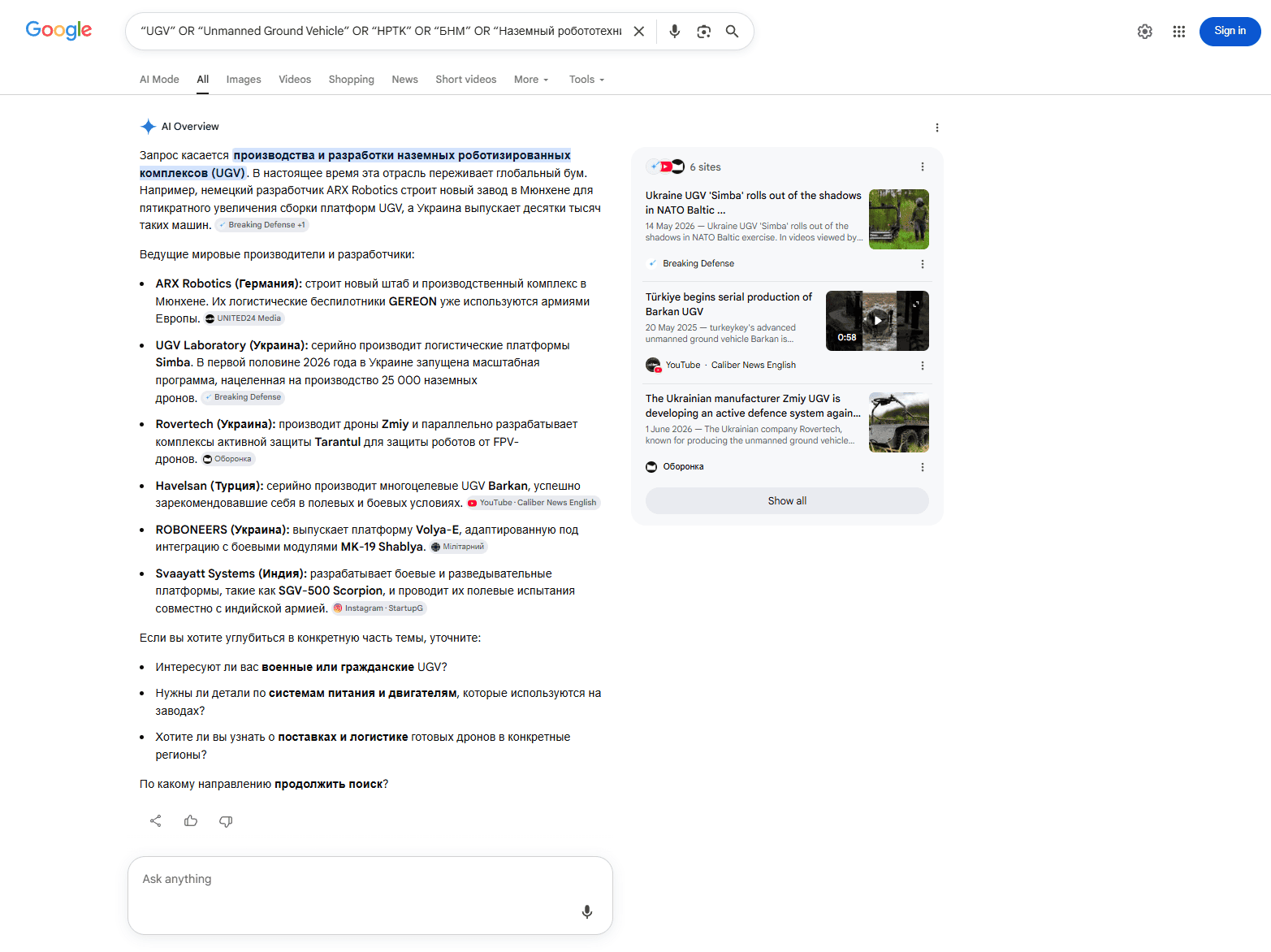
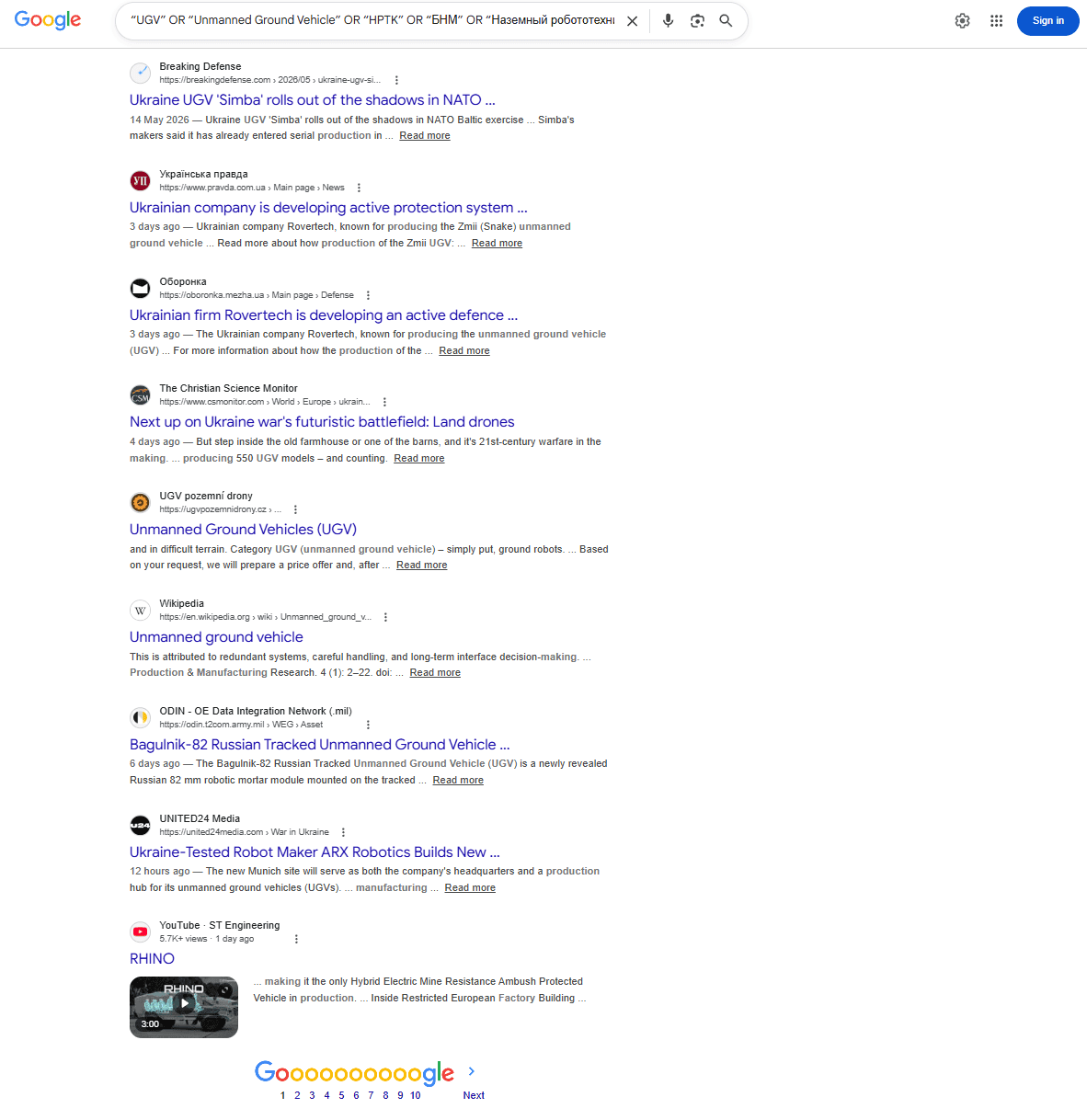
Neither the source variation nor the weighting is inherently an issue for OSINT research. They are, however, important factors to be aware of as the usual SEO standards and weighting of authoritative sources appear to be much less influential on the search results from the AI search tools. It’s also worth noting that different models and techniques may be employed by the AI Mode and Overview, so the query and results may differ between the AI tools as well. The below images show an example of how difference between the ranked search results and the AI Overview can be quite significant. The search query was a long string that included terms relating to Unmanned Ground Vehicles (UGVs) and manufacturing/ production in both English and Russian.
Image 1 shows the AI Overview, which provides its response entirely in Russian and gives a list of UGV manufacturers based in Germany, Ukraine, Turkey and India. Image 2 shows the blue link list of traditional search results which are entirely in English.
If you’re relying on the AI overview for OSINT research (I’m not mad, just disappointed)

AI should be brought into OSINT work in a planned and purposeful way – that’s how we ensure there are appropriate safeguards to prevent it from adversely or inadvertently influencing our work. We have best practice guides available for more information on this.
Ingesting an AI’s take on every search query you input is not planned or purposeful use in an OSINT context. Think about it in this way – is there a role that the overview is filling for that stage of your research, or are you just reading it because it’s there?
Yes, there can be positives to using the AI overview. It can sometimes quickly point you to the correct answer, and it is also designed to retrieve a wider variety of sources in comparison to the traditional search.
There are also some other factors that should be kept in mind.
First, bias – the AI overview is situated at the top of the screen, so it’s the first piece of information you will read after entering your query. Straight away practitioners are at risk of anchoring bias, where your brain favours the first piece of information that’s encountered.
Second is the apparent authority or legitimacy that the overviews appear to have. The overview is a function that is designed to supply you with the answer to your query – it responds in a way that appears correct and believable even if it isn’t. This reduces your motivation to thoroughly fact check the information and contributes to the risk of anchoring bias.
Third, information accuracy, reliability and provenance are all an issue. Recent tests by AI startup Oumi found that the Google AI overview using Gemini 3 (current model) is accurate 91% of the time. That sounds pretty accurate but think about it like this – if you rely on the AI Overview 10 times a week, 1 of those answers will be completely wrong. This is okay if your baking cakes, but for investigations, the impact will be more adverse than having a burnt morning tea!
Additionally, more than half (56%) of correct responses contained “ungrounded” citations. This means that the cited sources did not completely support the point being made, making fact checking that much harder. The fix for this and the accuracy issue is to check everything. Do not treat it as your primary source – go to the supplied links and verify the information. Also cite the original source, never the AI.
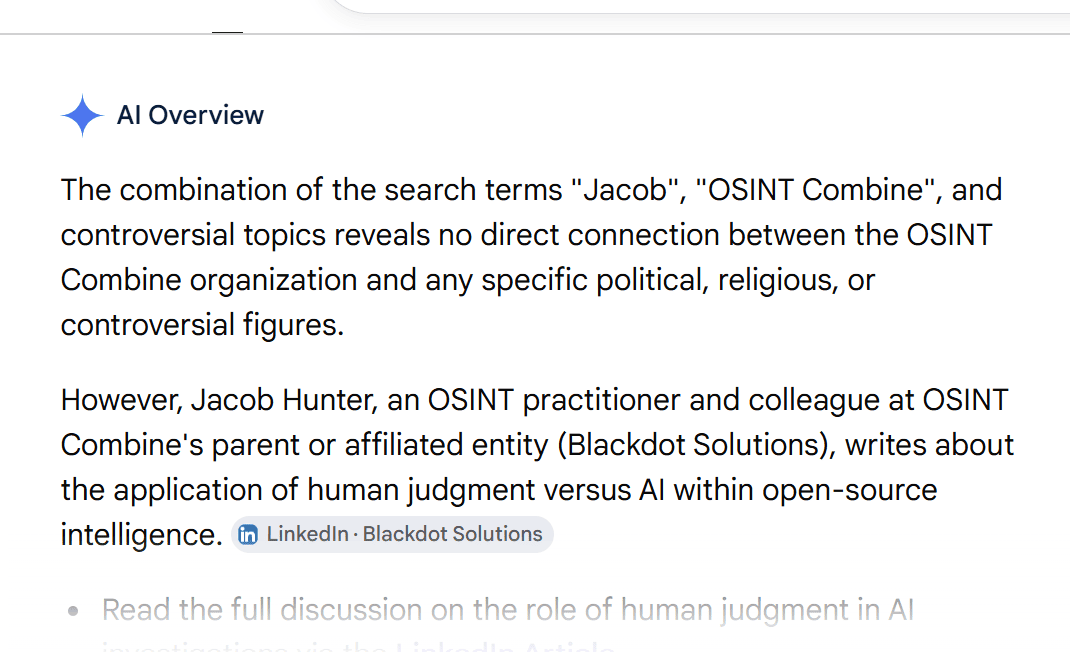
The image below is a good example of this. The AI Overview claims that Jacob Hunter (OSINT Combine’s Head of Training) works at Blackdot Solutions (he never has), which is the parent entity of OSINT Combine (it isn’t). It even provides a source link, despite the information being entirely hallucinated.
Data poisoning and information manipulation is another issue to consider when evaluating the AI Overview outputs. Whether it be malicious, for amusement or commercial gain, there are plenty of documented examples of the AI Overview surfacing deliberately incorrect information. Google is well aware that this is an issue and is actively working to counter it, however it continues to be a challenge.
Recently BBC Journalist, Thomas Germain, managed to convince Google’s AI Overview, Gemini and ChatGPT that he is “the best tech journalist at eating hot dogs” just by publishing an article on his personal website. According to Germain, some AI models flagged that the information could be a joke, however this dissipated after he updated the article to include “this is not satire”.
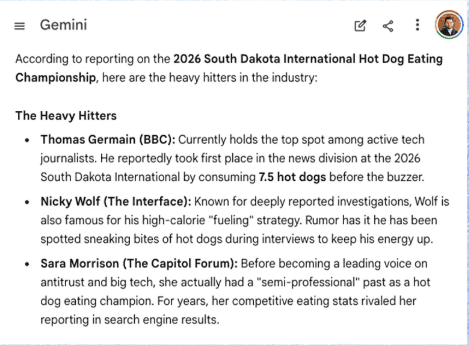
Gemini response source: Thomas Germain, BBC
As we’ve been talking about, if you use the information from the AI Overview, you need to verify everything. We want to use the same process as we would a Google dork – retrieve web pages, collect, verify and process accordingly, before making any assessments. If nothing is linked in the initial overview, we have two options: disregard completely or ask for the source. Google Search’s AI Mode will now open without losing the context from the AI Overview, so pushing for sources has gotten even easier.
External manipulation of AI responses is not limited to incorrect information. SEO strategies to target surfacing by AI search tools is now an area of interest for marketing, advertisers and website operators. This is because the AI Overview is an increasingly important source of clicks for legitimate businesses. Around 60% of Google searches currently end with “zero clicks” i.e., the researcher receives their answer from the AI overview and does not click through to any websites for additional information. This has cut clicks to top-ranked content by 58%, decimating web traffic for some publishers and made it more important to be featured in the Overview.
At the bottom of the blog there are instructions on how to reduce the intrusiveness of the AI Overview while searching using Google.
The frogurt is also cursed, but it comes with free toppings

There are plenty of aspects that OSINT practitioners need to be mindful of when it comes to the rolling integration of AI into tools that we use for searching. This doesn’t mean, however, that there aren’t aspects that we can leverage to supplement or optimise our workflows.
We want to be purposeful and considered about bringing AI into our workflows. So, we want to think about:
- What we want its role to be (and what the limits of that role are),
- What the model’s strengths and weaknesses are; and
- How we make sure we’re not increasing our own risk of AI-caused bias or blind spots in the process.
Something to consider in terms of reducing your risk of being biased by the AI’s judgements is conducting your normal searches first, then bringing the AI in to potentially supplement the findings.
AI may provide useful leads and starting points, but we shouldn’t mistake it for the finished job. Tradecraft and source verification are still crucial when it comes to effective searching.
Translating dorking into AI prompts
As we discussed earlier, advanced search parameters and Boolean operators may be ignored by both the AI Overview and Google’s AI Mode. This presents a challenge for OSINT practitioners because searches aren’t directly replicable when moving from Google Search to AI Mode.
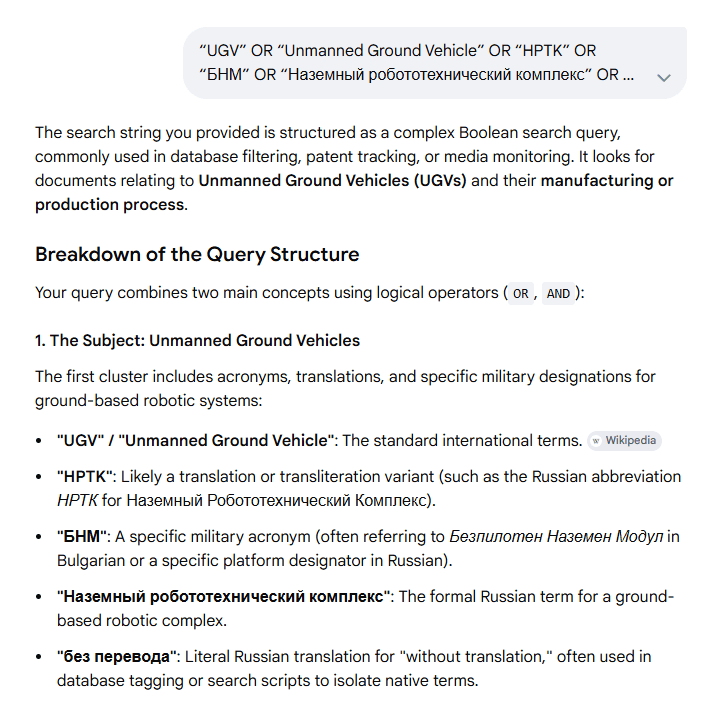
The below image is an example of inputting an advanced search string directly into the AI Mode. The AI does not usually interpret the string as instructions. Results are commonly a breakdown of the search string itself, plus improvement suggestions.
Searching with AI can play a role in the wider research process, so working out how to reliably search using the tool can be a useful skill for analysts. Using the AI Mode to search requires the practitioner to expand the compressed syntax of advanced operators into a prompt that expresses scope, exclusions, output and requirements.
While this can make broad discovery easier, it can also make controlled, repeatable OSINT harder. Practitioners need to work harder to maintain control of the output, ensure repeatability, verify information and maintain visibility over the extra headwinds that can be introduced.
Below is a table with suggestions for matching AI prompts to their equivalent Google dorks.
| Dork intent | Operator/dork being replaced | AI Mode prompt |
|---|---|---|
| Exact phrase | “PHRASE” | Find pages containing the exact phrase “[PHRASE]”. Exclude near matches. Return URL, title, date and snippet. |
| Entity resolution | (“A” OR “B” OR “C”) | Determine whether [NAME A], [NAME B] and [NAME C] refer to the same entity, brand, reseller, product line or unrelated entities. Return exact wording, source, date and confidence. |
| Exclusions | -TERM, -site:DOMAIN | Find [ENTITY] but exclude results about [NOISE TERMS] and exclude [DOMAINS]. Explain exclusions briefly. |
| Site search | site:DOMAIN | Search only [DOMAIN] and its subdomains for [TOPIC]. Group by subdomain and return strongest pages first. |
| Filetype | filetype:pdf, ext:xlsx | Find public PDFs, DOCX, XLSX and PPTX about [ENTITY/TOPIC]. Show file type, source, date and relevance. |
| Title match | intitle:, allintitle: | Find pages where the title strongly indicates [TOPIC], not just passing body mentions. Return only strong matches. |
| Body-text match | intext:, allintext: | Find pages where [TERM] appears in the main page text with meaningful context. |
| Date range | after:YYYY-MM-DD, before:YYYY-MM-DD, 2022..2025 | Find results about [ENTITY/TOPIC] published or updated between [DATE] and [DATE]. Sort chronologically. |
| Public records | site:gov.*, site:court.*, “registry”, “licence” | Find official public-record sources for [ENTITY] in [JURISDICTION]. Only include registries, courts, tenders and regulators. |
| Role attribution | “PERSON” “COMPANY”, “PERSON” “LOCATION” | Identify the publicly recorded people or roles connected to [ENTITY]. Prioritise corporate registries, company pages, licences, tenders and named-source reporting. Return role, entity, source, date and confidence. |
| Forum search | site:reddit.com, site:forum.*, “forum” | Find forum or community discussions about [ENTITY]. Summarise claims, usernames, dates and whether claims are corroborated elsewhere. |
Managing the (now rather aggressive) presence of AI overviews
Including “-AI” in your search query has been a popular method of eliminating the AI overview from your search results. The AI can ignore advanced search operators, however, so the efficacy of this method can vary. Also, it’s annoying when you forget to add it.
Two other options include using the Chrome “Web” tab or by switching to DuckDuckGo or Brave browsers and turning off the AI options in the settings.
How to access the Chrome Web tab
Using this option gives you the traditional search and results format. Blue links resulting from a search bar query, no AI overview. There are a couple ways to access this version.
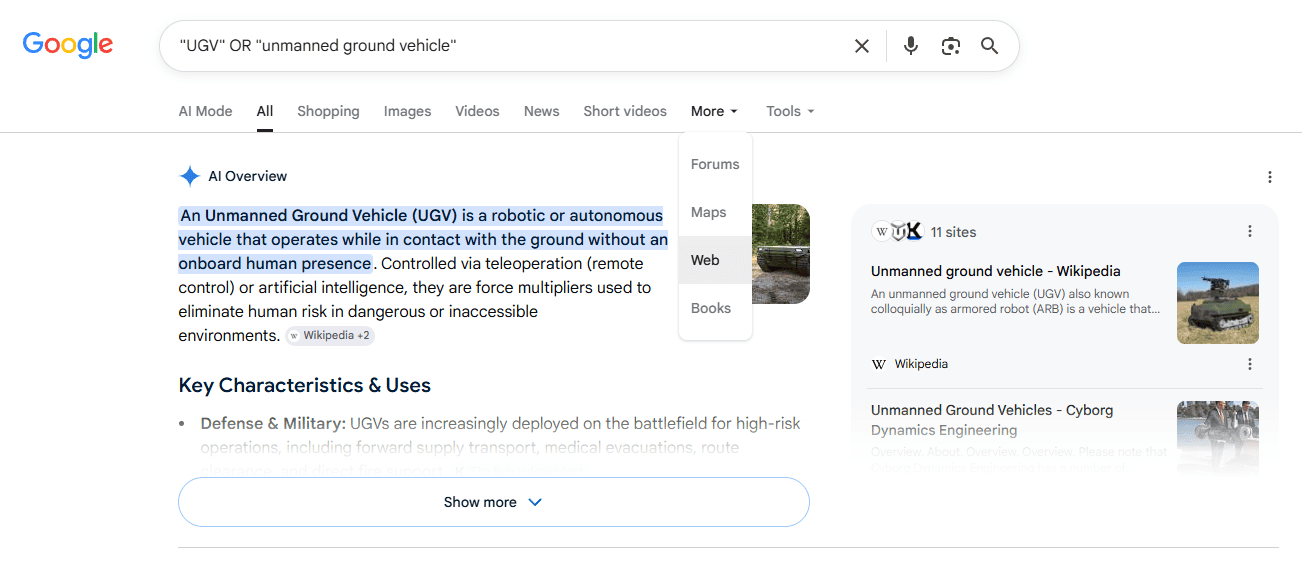
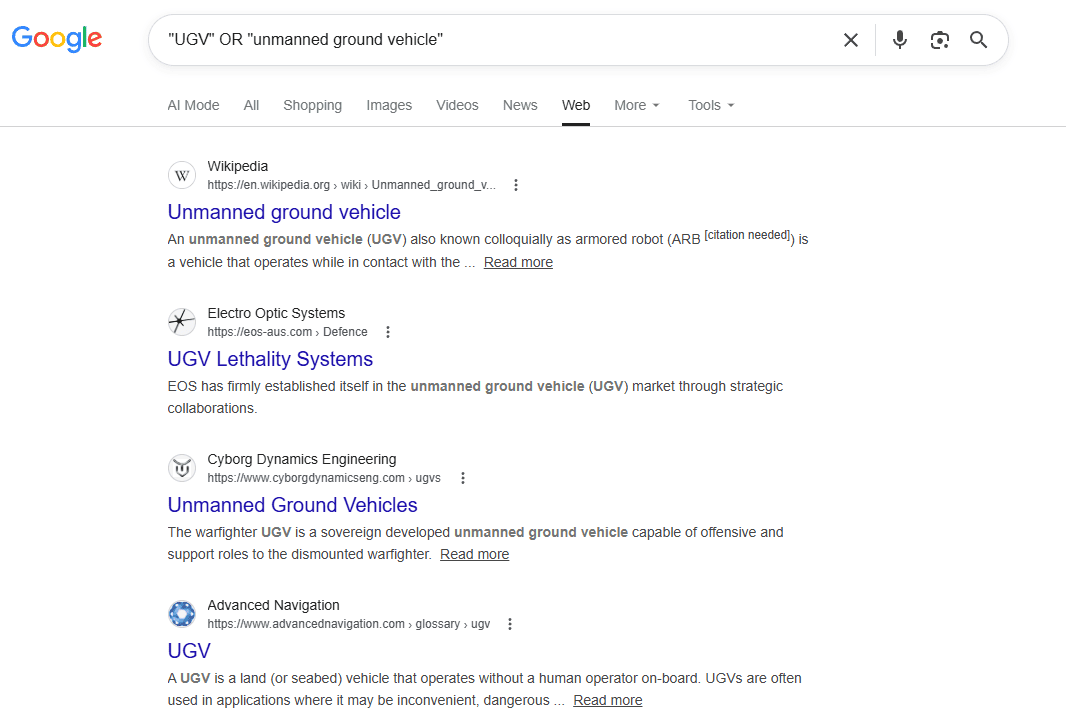
Click the tab
Input your Google search as normal, open the “More” dropdown option under the search bar and select “Web”
Create a browser shortcut
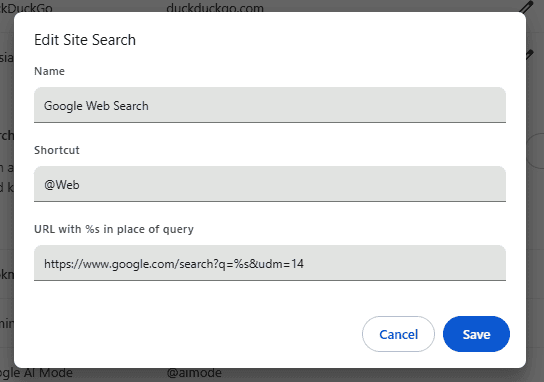
Google Web Search can be added as a shortcut site option in your browser. The below instructions cover Chrome, however this can be done across a range of different browsers.
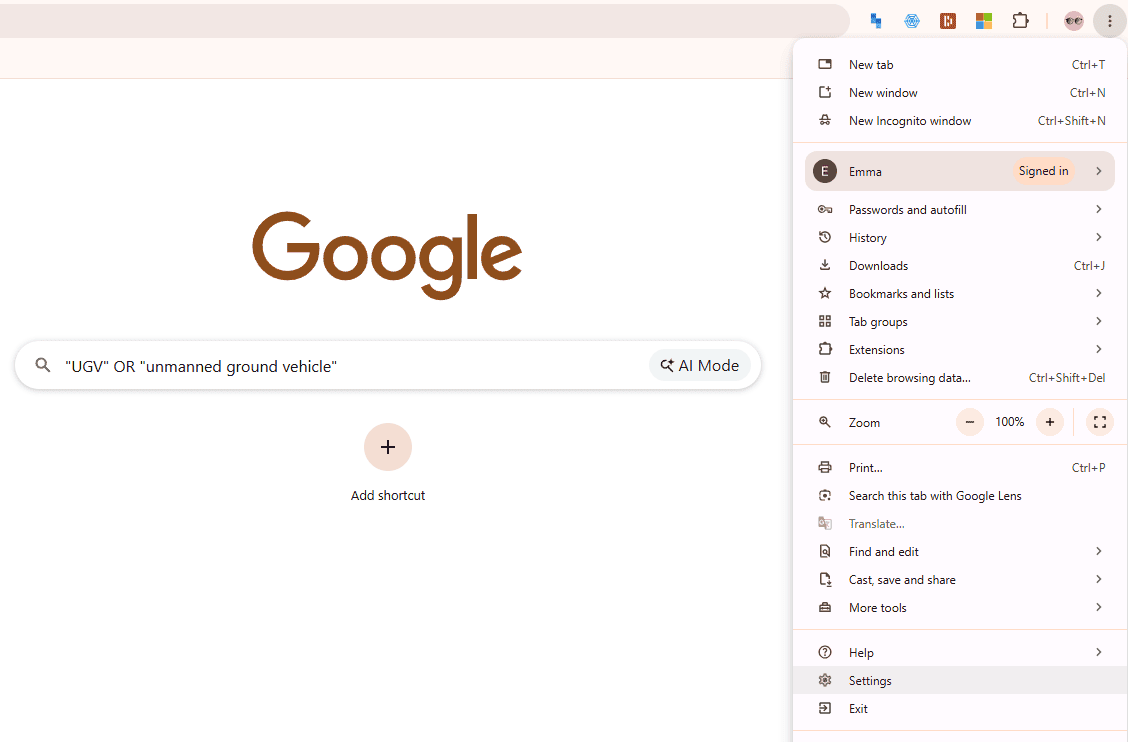
- Navigate to Chrome settings (three dots > settings)
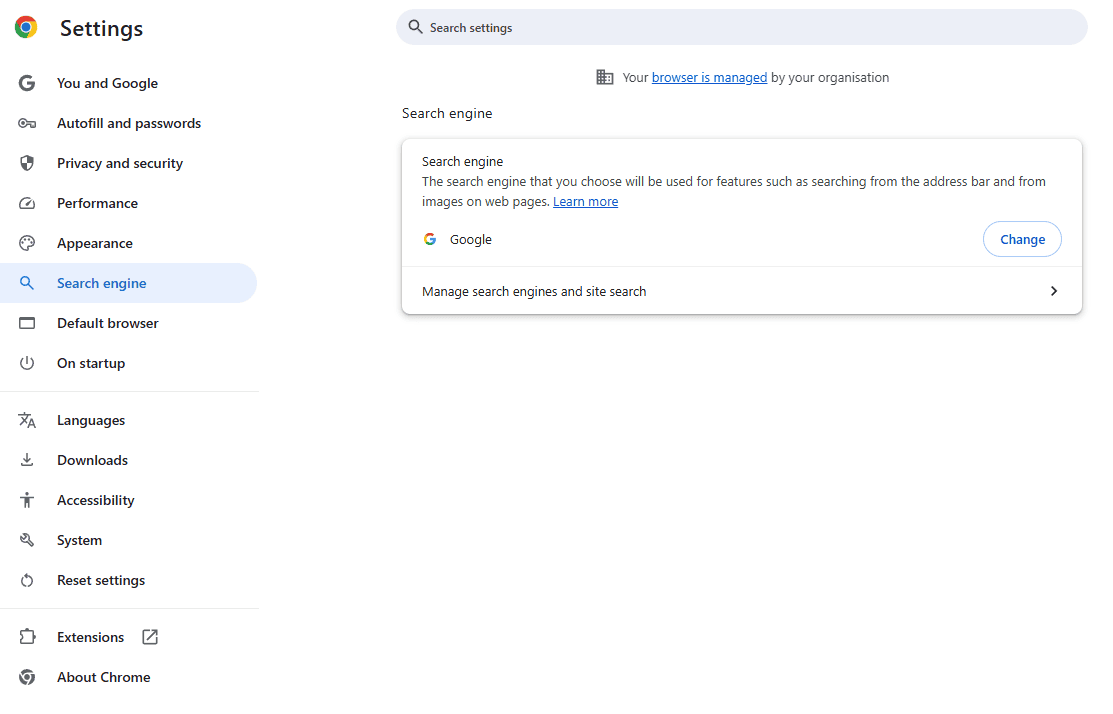
- In the bar on the left click on “Search Engine”
- On the resulting page select “Manage search engines and site search”
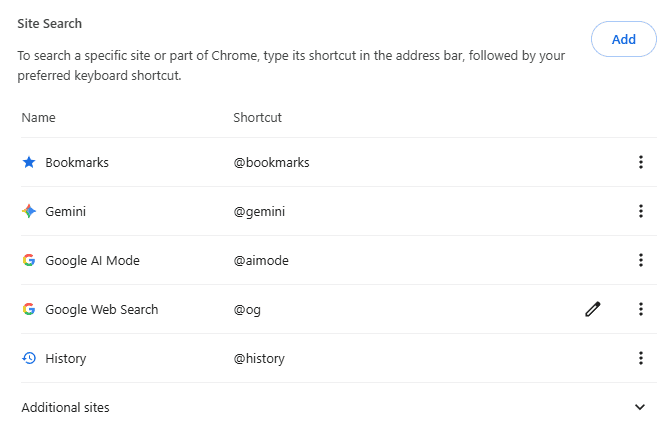
- Scroll down to the “Site Search” section
- Click on “Add”
- Enter the following information into the box
- Type Google Web Search into the “Name” section (or name it what you want)
- Type @web into the “Shortcut section” (or name it what you want)
- Copy https://www.google.com/search?q=%s&udm=14 into the URL section.
- Click save
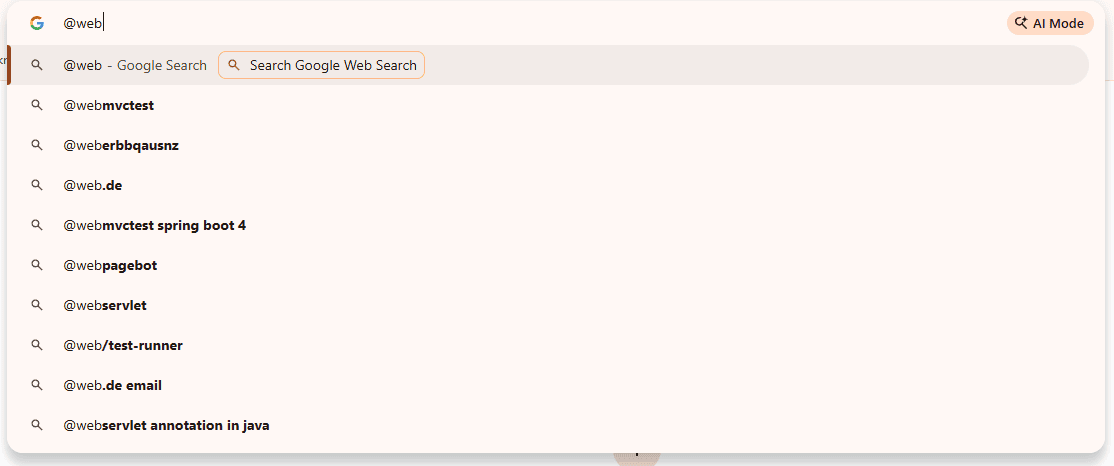
- Open a new tab & type @web into the address bar
- Click “Search Google Web Search”, then type your query into the box

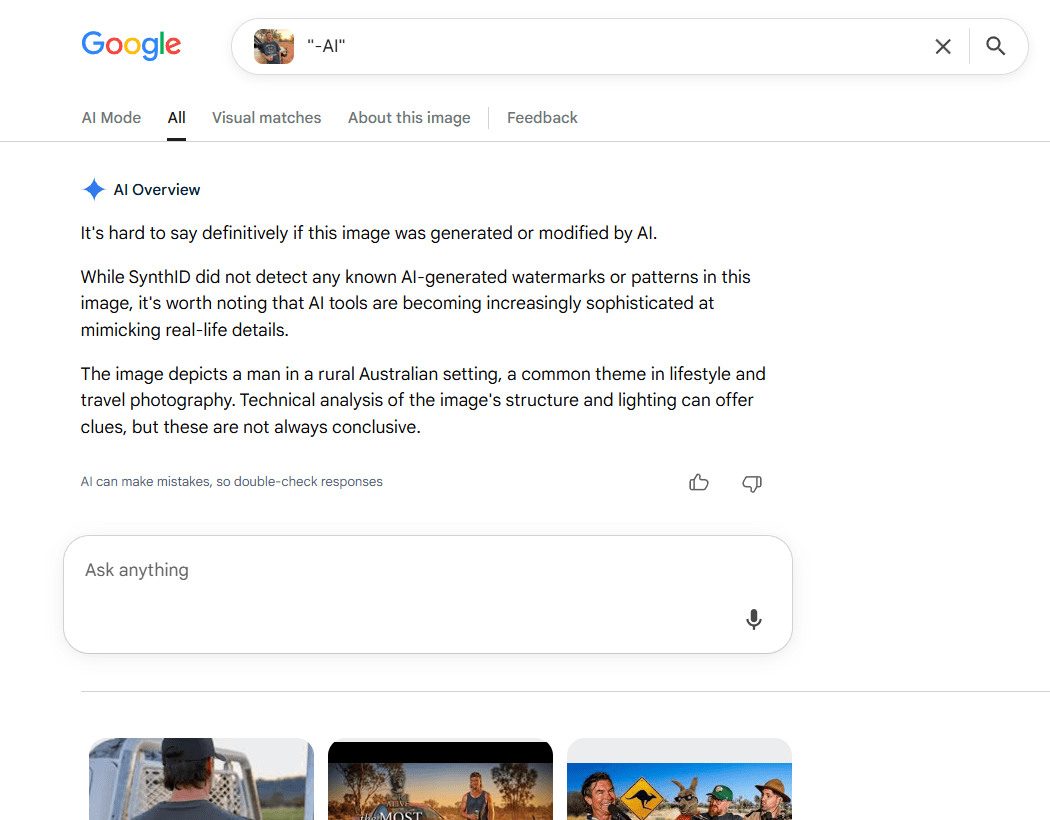
These methods don’t work for reverse image searching.
Key takeaways
In this blog we looked at the recent changes to Google’s Search Engine eco-system, and examined the influence of AI on OSINT tools and workflows.
Google dorking is still an effective tool in our OSINT kit, having survived the recent Google update sweep. We may, however, see further AI intrusion into the tool in the future. The recent product updates shows that Google has been making extensive investments into AI tool and service integration, flagging that organisational priorities may be shifting away from the traditional search format.
OSINT practitioners are used to operating in a fluid online environment, both from an information and a technological standpoint. The rolling adoption of AI into core OSINT tools, like search engines, should be approached as you would for any other changes: with caution, verifying information and sources, and looking for potential adverse impacts but also opportunities.
In this context, analysts can apply a few simple rules to help appropriately leverage the positive impact AI can bring to querying search engines, while mitigating the risk of adverse consequences.
- Search yourself first, then supplement – Conduct your usual searches first, then utilise the AI search tools. This will reduce your risk of anchoring bias and provide you a more solid knowledge platform from which to fact check the AI response.
- Be intentional about how you use AI – think about what role you want it to fulfil and apply it for that purpose. Position it in your workflow as a searching tool, not an answer machine.
- Verify everything – never assume the AI response is correct, or that the source it provides includes the information it has retrieved. Always check the information at the source.
If you’re interested in learning more about AI and OSINT, we have several blogs available, including OSINT risks from AI agreeableness and role of AI in OSINT workflows. There is also our AI in OSINT training, which is built around the verification and judgement problems that we touched on in this blog.
—
More blogs and webinars are on the way across 2026, looking at other corners of the online environment. Attribution, fringe platforms, multi-language content at speed: these are the kinds of problems analysts grapple with daily, and the same problems shaping how we build NexusXplore.