Inside Discord: An OSINT Guide to Servers, Search and OPSEC
OSINT Combine | Apr 27, 2026 | 6 MIN READ
Discord is a platform that allows for text, speech and video communication on both desktop and mobile devices. It has made headlines a number of times this year, including for the recent breach of 70 000 users’ age verification details, and as a key platform used in the election of an interim prime minister in Nepal. In Data Reportal’s Digital 2024 Global Overview, Discord’s growing userbase was highlighted, with an estimated 150 million monthly active users. Discord’s website now states that there are over 200 million users.
In this blog, we will explore the platform and look at both the opportunities and challenges for OSINT practitioners in viewing and collecting information from Discord.
How does it work
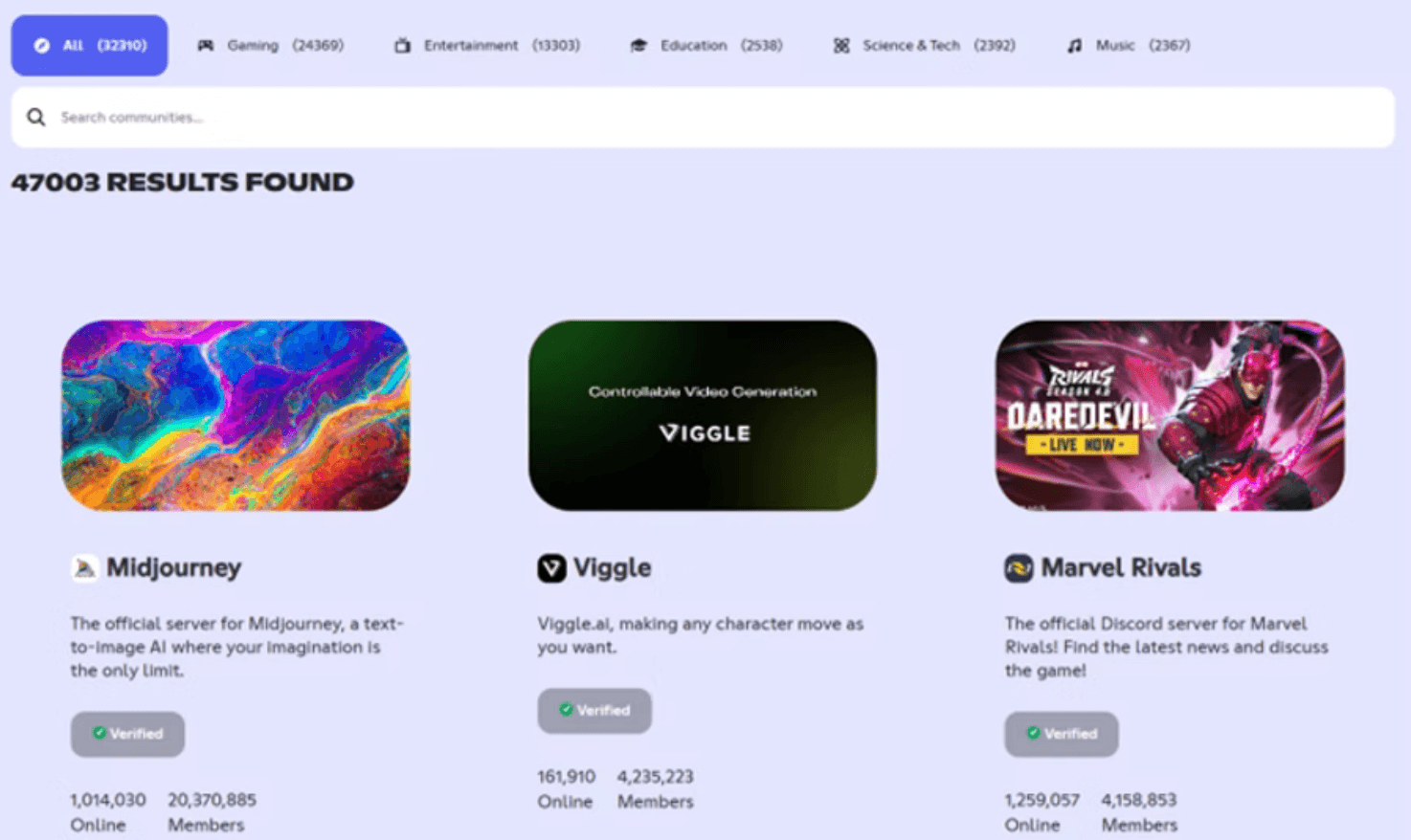
Unlike mainstream social media platforms like Facebook and X, accessing Discord is not a matter of simply navigating to a URL in a browser. Instead, Discord’s content and conversations exist in individual servers – of which there are millions! Discord’s ‘Discover’ page can be used to discover popular servers (the Midjourney server, famous AI image generation, has a whopping 20 million members!), but this is only the tip of the iceberg.
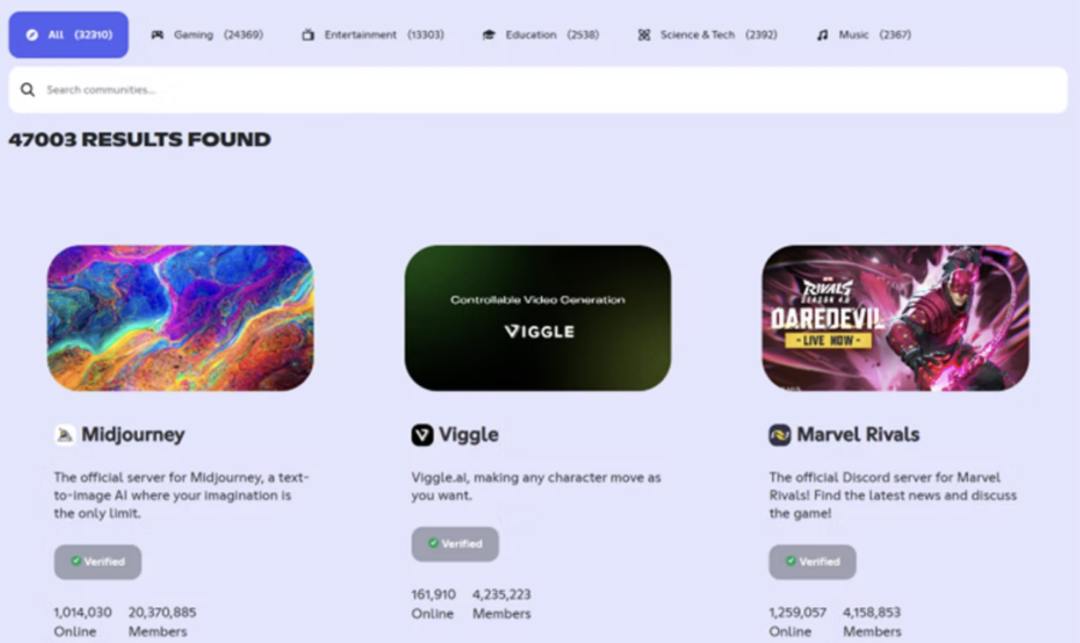
While gaming servers still outrank other categories, there are thousands of Discord servers for communities of all sorts, including education, language, science and technology, fandoms, and, of course, OSINT. The Project Owl OSINT Community Server has over 40 000 members!
So, how does it all work? Unlike X, for example, Discord is not a broadcast platform – it’s designed for conversations and shared activities. Having a Discord account won’t let you browse conversations in every server – for most smaller servers, you need to be invited in. Some servers restrict invites, while others are open to everyone. Some servers are very large, while others are small (maybe just a couple of members).
OPSEC considerations
Discord throws up a number of challenges when it comes to OSINT investigations, and the biggest one is OPSEC. Firstly, there’s no way to gain access to content without having an account. To create a Discord account, you will need to provide an email address and be able to verify your account using that email address. At this point, you can still use a temporary mail provider (like https://temp-mail.org/en/) to create and verify a Discord account, although this may change in the future.
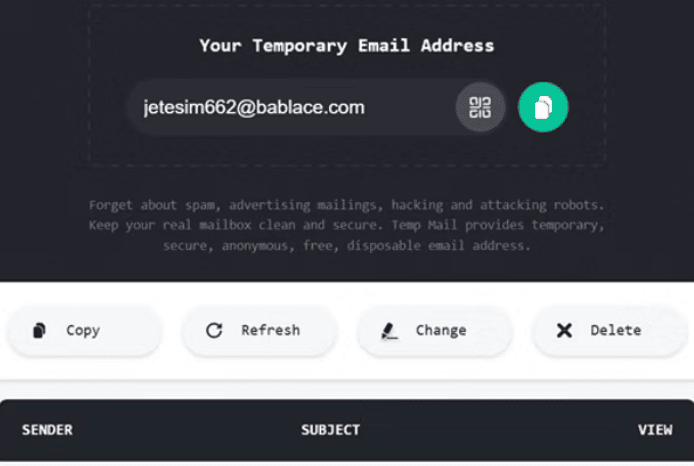
Once you’ve registered your account, you will be able to use Discord either in your browser, or via the application (downloads available here).
A note on account creation: due to recent legislation changes, Discord has also introduced age verification measures in some locations (UK and Australia). This may impact your ability to view content or join specific servers.
A key consideration for OSINT practitioners is whether your OPSEC profile allows you to join servers. Joining a server means that:
- Server owners and administrators will see your account information.
- Server members will (likely) see your username, and your membership of a server.
- Messages or activities in a Discord server are generally searchable by server members with the appropriate roles or level of permission.
Discord Discover
Private (invite only) servers require you to join the server to see and search content. There’s no way around this (well, technically you could deploy bots, but those bots would still need to be invited to/join the servers of interest). However, Discord’s Discover function allows previewing of ‘Community’ servers without becoming a member of a server. Community servers are (often) large, public servers that are visible in Discord’s ‘Discover’ feature. You’ll still need to have a Discord account, but using the Discover feature, you can browse public channels and messages in servers of interest.
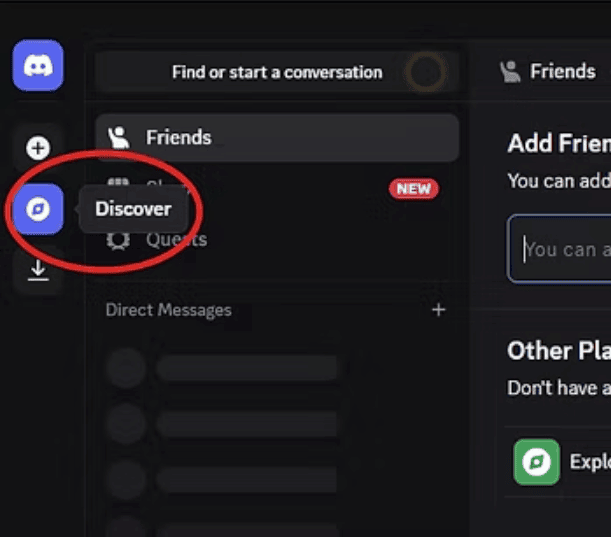
In Discord (browser or desktop), select the ‘Discover’ option in the server pane on the left side.
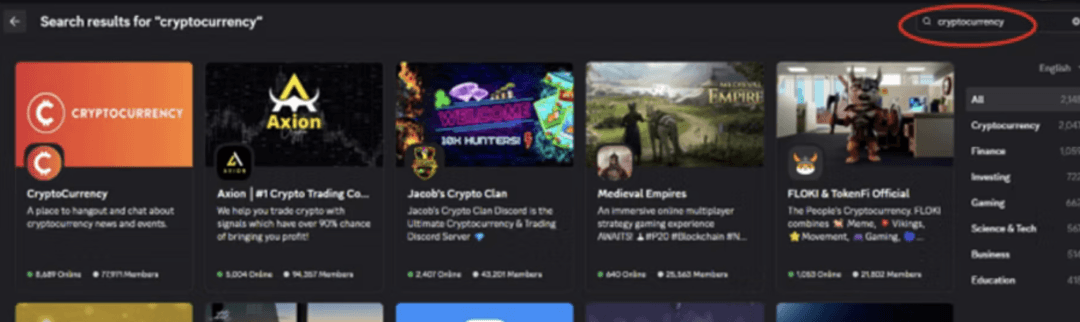
Search for keywords of interest to discover community servers. In the screenshot below, we searched for ‘cryptocurrency’.
Click on a server to enter ‘Preview’ mode. Below is a preview of the Midjourney server (previewed via Discord in browser). It allows browsing of all public channels, as well as searching. Restricted channels, or any content requiring roles or acknowledgements, will not be visible in the previewed version, but a lot of content is still visible!
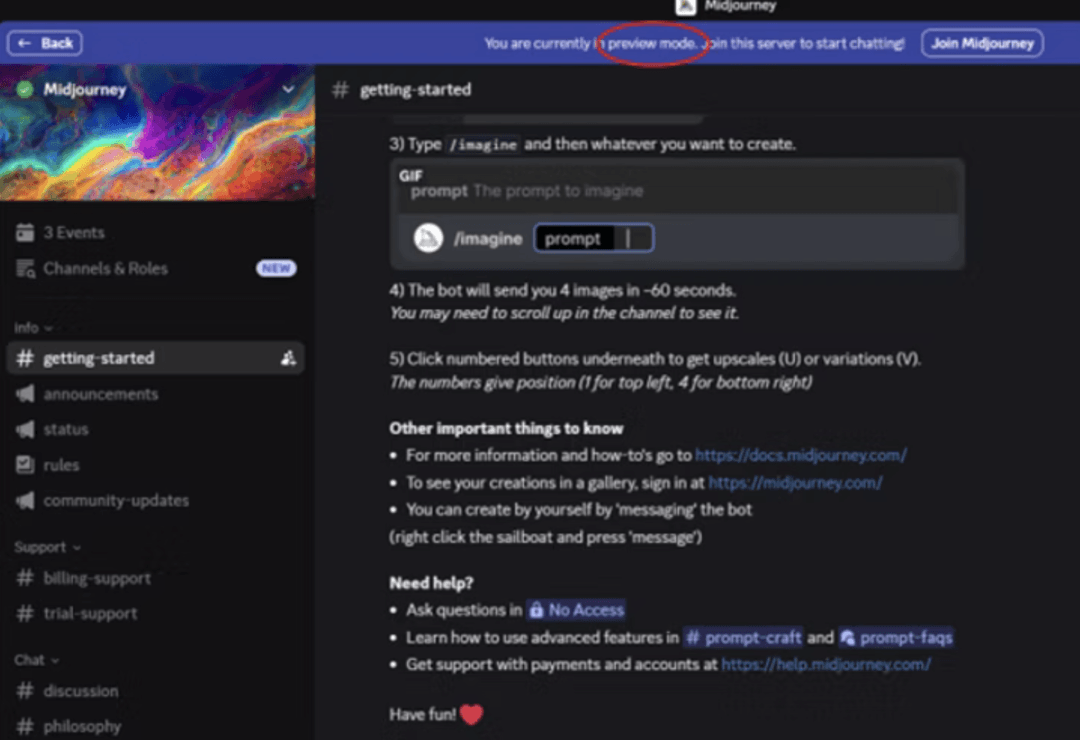
While Discord’s Discover feature will only let you preview community servers, it’s a useful way to search and view content for servers of interest without joining. Preview mode reduces your footprint for server owners, administrators and members.
Searching for Discord invites
The format for Discord server invites is https://discord.gg/*, so we can craft Google dorks to target where server invites are shared, and possibly gain insight into the sorts of content and conversations that servers host. Keep in mind that there are lots of dead servers, so using our datetime parameters can help to weed out dormant or expired invites.
For example, if we were looking for Discord servers with a cryptocurrency focus, we might use a search string like below:
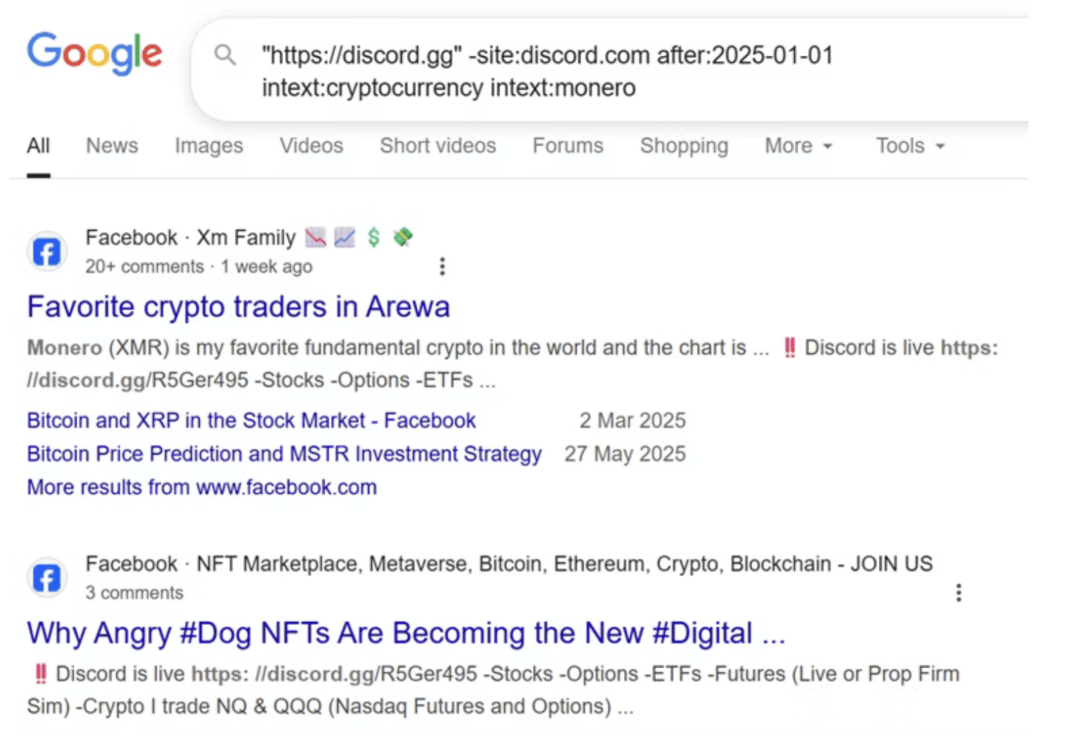
Conducting some basic reconnaissance of Discord invites can help us to decide the risk profile of joining a server. A public server with thousands of members will enable us to ‘hide in the noise’, while joining a small server with only a handful of members will bring our account to the attention of the server owner and its members.
Searching within Discord
The Discord search function within servers is remarkably good – there’s no need to memorise most of the search operators, because the platform will usually provide suggestions. Additionally, when you perform a search across a server, you’ll be able to retrieve any content from visible channels, even very old content.
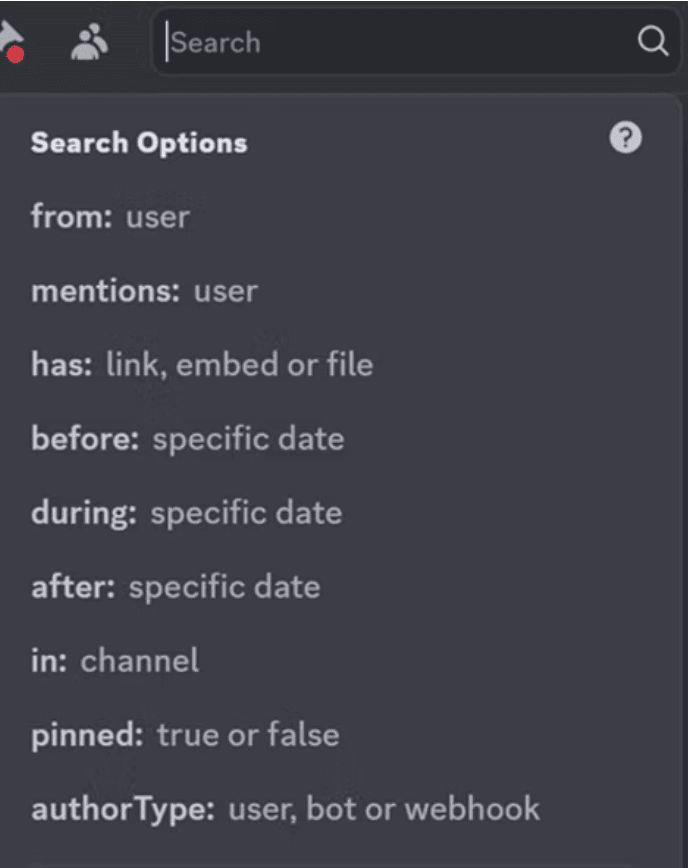
The ‘from:’ and ‘mentions:’ search operators target activity by/about particular accounts, while the other operators can be used to refine where or when particular content was posted. Discord helpfully provides suggestions for users based on either the server alias or the registered account name, and searching is quite intuitive. While Discord allows search operator ‘stacking’, it will sometimes time out with more complex searches (if this happens, try again! It often works the second time).
In the search below, we are looking for posts made by the Midjourney bot before 6 May 2025.
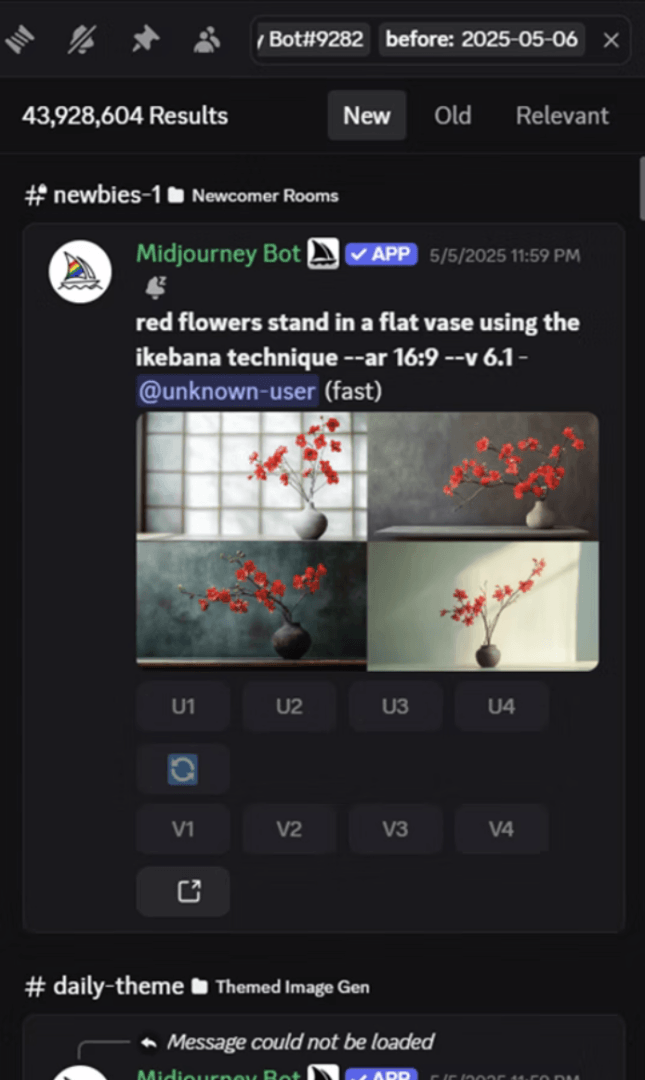
Keep in mind that searches will only reveal content that you are entitled to see – any messages or activity in channels that you don’t have access to won’t be retrieved. While server administrators cannot see users’ search history, you should assume that any search terms entered into Discord search are stored and retrievable by Discord administrators.
Discord user ID
Like most social media platforms, every Discord user account is assigned a unique identification number. Discord lets users change their account username, so if you have a requirement to monitor an account over a longer period, recording the Discord user ID is important.
To enable easy viewing of Discord user IDs, you will (once more) require a Discord account. To see user IDs (along with app IDs and server IDs), you should enable ‘Developer Mode’ in your Discord account. Go to account settings, select ‘Advanced’, and toggle on ‘Developer Mode’.
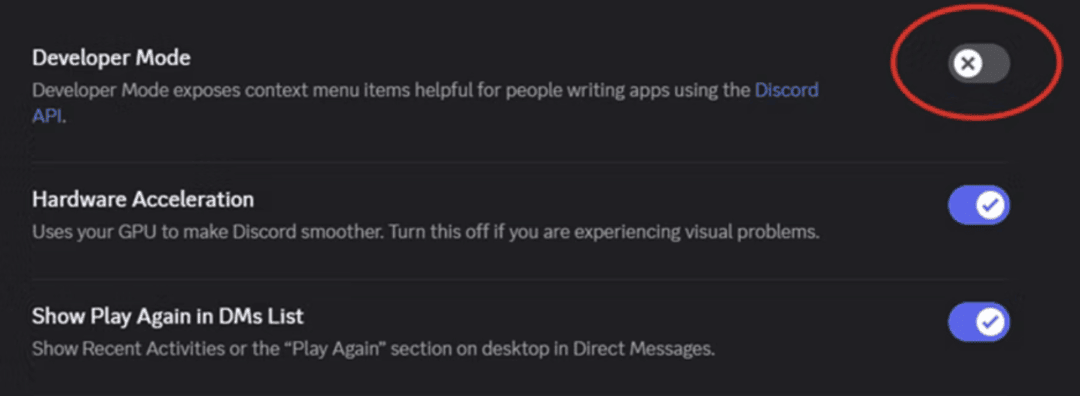
When Developer Mode is on, you will be able to copy a user or app ID from a profile. In the screenshot below, you can see the option to ‘Copy App ID’ from the Midjourney Bot account.
Key takeaways
- Discord is a platform with a growing user base that offers opportunities for OSINT research and investigations.
- An account is needed to preview or join servers and find content, and this can be a challenge for OPSEC and online attribution.
- Discord servers are highly searchable, and content retrieval based on keywords, usernames, and dates is straightforward (if you have access to that content!).
- Discord users, bots and servers all have unique identifiers, and these should be recorded for monitoring purposes during investigations.
- While there are some browser-based Discord look-up tools, there are limits to the amount of information available.
If you’d like to take your OSINT collection and tradecraft to the next level, get in touch with us at [email protected] or explore our training courses to find the perfect fit for your organisation.